
Logistics Efficiency & Cost Analyzer
Inventory Reorder Calculator
Calculate when to restock to avoid stockouts using the article's recommended formula.
Order more when stock drops below this level.
Freight Cost Comparator
Compare carrier rates based on weight and service level data from the article.
| Carrier | Est. Cost | On-Time % |
|---|
Should You Upgrade Beyond Excel?
Enter your weekly shipment volume to see if you've outgrown spreadsheets according to industry best practices.
You might think that once a company hits a certain size, spreadsheets become the enemy. They’re messy, prone to human error, and supposedly unable to handle real-time data. But here’s the truth: Microsoft Excel is still the backbone of global logistics operations for small and mid-sized businesses. It’s not just about storing numbers; it’s about turning raw shipping data into actionable insights without breaking the bank on expensive software.
If you’re managing a fleet of five trucks or coordinating deliveries across three cities, you don’t necessarily need a full-blown Transportation Management System (TMS) yet. You need visibility. You need control. And you can get both by mastering a few specific Excel techniques. This guide walks you through exactly how to use Excel in logistics, moving beyond basic lists to create dynamic tools that actually save time and money.
Why Excel Still Rules Supply Chain Management
Before we jump into formulas, let’s address the elephant in the room. Why stick with Excel when specialized logistics software exists? The answer is flexibility and cost. Most TMS platforms charge per user or per shipment, which adds up quickly. Excel, assuming you already have Microsoft Office, costs nothing extra. More importantly, it allows for rapid prototyping. If you want to test a new route optimization strategy, you can build a model in an afternoon. In a rigid software environment, changing a workflow might require IT support and weeks of development.
However, Excel has limits. It doesn’t offer real-time GPS tracking out of the box, nor does it automatically update customers when a package is scanned. It is a static tool unless you feed it fresh data. The key to using Excel effectively in logistics is treating it as a decision-support engine rather than a live operational dashboard. You import data from your carrier portals or warehouse scanners, analyze it, and then export decisions back into your operational flow.
Building Your First Inventory Tracker
Inventory management is where most logistics teams start their Excel journey. But a simple list of SKUs isn’t enough. You need to know what you have, where it is, and when you’ll run out. To do this, you need to structure your spreadsheet correctly.
Start with these columns: SKU ID, Product Name, Current Stock, Reorder Point, Lead Time, Supplier, and Last Updated Date. The magic happens in the calculations. Use conditional formatting to highlight items below the reorder point. Here’s a practical rule of thumb: set your reorder point at (Average Daily Sales × Lead Time) + Safety Stock. If your safety stock is zero, you’re gambling with stockouts.
Don’t just type numbers manually. Connect your spreadsheet to your sales system if possible. If you’re using Shopify or WooCommerce, you can export daily sales reports and paste them into a separate tab in your Excel file. Then, use VLOOKUP or XLOOKUP functions to pull current stock levels into your main dashboard. This reduces manual entry errors, which are the silent killers of logistics efficiency.
Analyzing Freight Costs with Pivot Tables
Freight bills are often opaque. Carriers bundle fuel surcharges, residential delivery fees, and accessorials into one lump sum. Without analysis, you’re overpaying. Pivot tables are your best friend here. Export your monthly invoice line items into Excel. Each row should represent a single shipment or fee component.
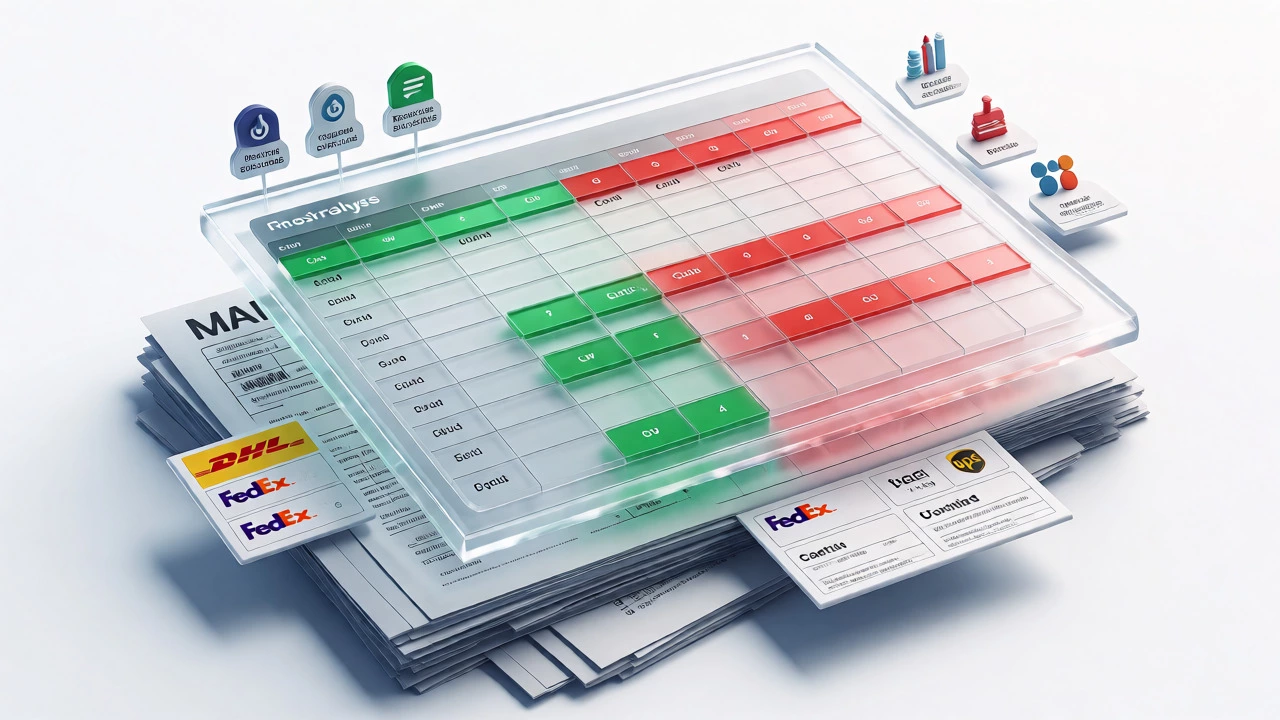
Create a Pivot Table that summarizes costs by Carrier, Service Level, and Destination Zone. You’ll likely find surprises. Maybe UPS Ground is cheaper than FedEx Home Delivery for packages under 5 pounds in Zone 4, but more expensive in Zone 8. By visualizing this data, you can adjust your shipping rules in your e-commerce platform to default to the cheapest option automatically.
| Carrier | Service Type | Avg Cost per Lb | On-Time Rate | Recommended For |
|---|---|---|---|---|
| FedEx | Ground | $1.20 | 98% | Urgent B2B |
| UPS | Ground | $1.15 | 96% | General Retail |
| DHL | Economy | $0.95 | 92% | Non-urgent Bulk |
This table isn’t just for show. Use it to negotiate. When you approach DHL with data showing they’re 20% cheaper for non-urgent bulk shipments, you have leverage. Ask for better rates on their standard service. Data turns you from a customer into a partner.
Route Planning Made Simple
Full route optimization requires complex algorithms, but you can get 80% of the benefit with 20% of the effort in Excel. Start by mapping your delivery zones. Assign each customer a zone number based on zip code or postal code proximity. Then, group orders by zone and delivery day.
Use the SUMIFS function to calculate total weight and volume per zone per day. If a zone exceeds your truck’s capacity, split it into two trips or shift some deliveries to the next day. This prevents last-minute scrambles and overtime pay. You can also track driver performance by logging actual miles versus planned miles. If drivers consistently exceed planned miles, your routing logic needs adjustment, or traffic patterns have changed.
Automating Reports with Macros
Once you have your data structured, stop doing repetitive tasks manually. Record a macro that cleans up imported CSV files from your carriers. These files often have headers spanning multiple rows or unnecessary footer notes. A simple macro can delete those rows, format dates correctly, and move the clean data to your master sheet.
For advanced users, Power Query is a game-changer. It’s built into modern versions of Excel and allows you to connect directly to databases or web sources. Instead of copying and pasting, you refresh the query. This means your weekly KPI report updates itself every Monday morning. No more scrambling to compile numbers before the team meeting.

Common Pitfalls and How to Avoid Them
The biggest risk with Excel is version control. Who has the latest copy? Is Sarah’s file on her desktop outdated? Use OneDrive or SharePoint to store your master file. Enable co-authoring so multiple people can view it, but restrict editing rights to prevent accidental deletions. Always keep a backup copy before making major changes.
Another pitfall is formula complexity. If a cell contains a nested IF statement with seven conditions, you’ll forget what it does in six months. Document your logic. Add a comment explaining why a certain threshold was chosen. Keep formulas readable. Break complex calculations into helper columns. It’s better to have ten simple columns than one monster formula.
When to Upgrade Beyond Excel
Excel is powerful, but it’s not infinite. You should consider upgrading to dedicated logistics software when:
- You process more than 500 shipments per week.
- Real-time tracking is critical for customer satisfaction.
- You need automated label generation and printing.
- Multiple departments need simultaneous access to live inventory data.
- Compliance reporting becomes too time-consuming to manage manually.
At that point, look for tools like ShipStation, EasyPost, or a lightweight TMS. Many of these integrate with Excel, allowing you to export final reports while leaving the heavy lifting to the software.
Key Takeaways
- Structure matters: Clean data inputs lead to reliable outputs.
- Pivot Tables are essential: Use them to uncover hidden freight costs.
- Automate routine tasks: Use macros and Power Query to save hours.
- Know your limits: Move to specialized software when scale demands it.
Can Excel replace a full Transportation Management System?
For small businesses handling fewer than 500 shipments weekly, yes. Excel can manage booking, tracking, and billing efficiently. However, it lacks real-time automation and integration capabilities found in dedicated TMS platforms.
What is the best way to track inventory in Excel?
Use a combination of conditional formatting for low-stock alerts and VLOOKUP/XLOOKUP functions to link current stock levels with sales data. Regularly update stock counts via imports from your sales platform to minimize manual entry errors.
How do I analyze freight invoices in Excel?
Import line-item data from carrier invoices into a single sheet. Create a Pivot Table summarizing costs by carrier, service type, and destination. Look for anomalies like unexpected fuel surcharges or inconsistent rates for similar weights.
Is Power Query difficult to learn for logistics?
It has a learning curve but is highly rewarding. Once set up, it automates data cleaning and merging from multiple sources. There are many free tutorials specifically focused on logistics data cleanup.
How often should I update my logistics Excel sheets?
Daily updates are ideal for active operations. If you cannot update daily, ensure you refresh data at least weekly for accurate financial reporting and inventory reconciliation.